 Unity
UnityUnity SDK
Install package
- Go to Window → Package Management → Package Manager. Click ”+” button, then select “Add package from git URL…”
- Enter Git URL:
https://github.com/colyseus/colyseus-unity-sdk.git#upm - Click “ADD”
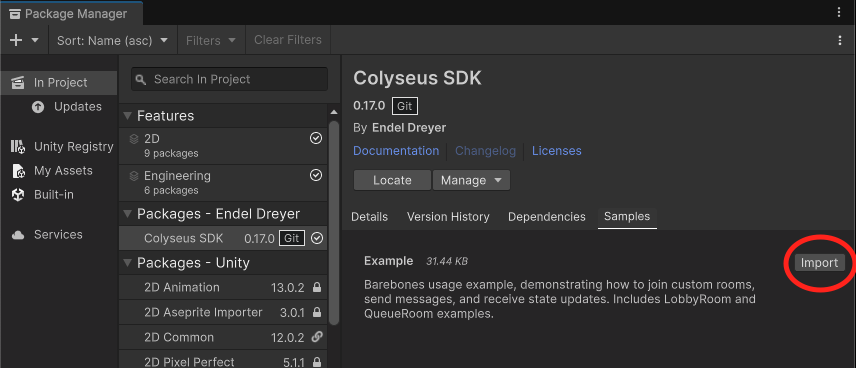
Click to import the example project in order to test the built-in demonstration.
Testing from Unity Editor
Starting with Unity 6000.1.0b1, Unity integrates Multiplayer Play Mode. This mode lets you test your Colyseus-based game with multiple clients inside the Unity Editor, without building the application.
- See how to install Multiplayer Play Mode
- Alternatively, you can use ParrelSync for older versions of Unity.
SDK Example Project
The example project included in the SDK package does not contain any visual components or UI. It contains the majority of important method calls you would be using in a real-world application.
- Joining into a custom room with Messages and State Synchronization
- Joining into a LobbyRoom and listening to its messages
- Joining into a QueueRoom and listening to its messages
- Consuming a seat reservation from QueueRoom and joining into the match room
Running the test server locally
To run the test server locally, you will need to run the following commands in your terminal:
git clone https://github.com/colyseus/sdks-test-server
cd sdks-test-server
npm install
npm start
You can see the source code for the test server here.
You should be able to see the server running at http://localhost:2567, and the example project will be able to connect to it.
Quick Example
This example shows how to connect to a room, listen for state changes via Callbacks, and send messages.
using UnityEngine;
using Colyseus;
using Colyseus.Schema;

public class NetworkManager : MonoBehaviour
{
    Client client;
    Room<MyRoomState> room;

    async void Start()
    {
        client = new Client("ws://localhost:2567");

        room = await client.JoinOrCreate<MyRoomState>("my_room");
        Debug.Log("Joined room: " + room.Id);

        // Get state callbacks handler
        var callbacks = Callbacks.Get(room);

        // Listen for changes on a state property
        callbacks.Listen(state => state.currentTurn, (currentValue, previousValue) => {
            Debug.Log($"Turn changed: {previousValue} -> {currentValue}");
        });

        // Listen for players being added
        callbacks.OnAdd(state => state.players, (sessionId, player) => {
            Debug.Log($"Player joined: {sessionId}");

            callbacks.Listen(player, p => p.hp, (currentHp, previousHp) => {
                Debug.Log($"Player {sessionId} hp: {currentHp}");
            });
        });

        // Listen for players being removed
        callbacks.OnRemove(state => state.players, (sessionId, player) => {
            Debug.Log($"Player left: {sessionId}");
        });

        // Send a message to the server
        room.Send("move", new { x = 10f, y = 20f });

        // Listen for messages from the server
        room.OnMessage<string>("chat", (message) => {
            Debug.Log("Chat: " + message);
        });
    }

    async void OnDestroy()
    {
        if (room != null) await room.Leave();
    }
}
Waiting for the first state
A resolved join does not mean the state has been synchronized yet. room.State is instantiated when you join, but its collections (players, nested refs, …) are only populated by the first full state sync. That sync arrives a moment later. Code that reads room.State right after joining finds empty collections (or null ones, with older generated classes) and null refs. Don’t keep a reference to a collection read before that sync. The decoder replaces it with the server’s copy, and the old instance stays empty.
WaitForFirstState() covers the gap. This method is the C# analogue of the JavaScript SDK’s room.onStateChange.once(...):
room = await client.JoinOrCreate<MyRoomState>("my_room");

// wait for the first full state sync before reading room.State
await room.WaitForFirstState();

Debug.Log($"{room.State.players.Count} players already in the room");
It resolves immediately when the state has already synchronized, so it is always safe to await, including after reconnections.
Never poll for state with Task.Delay on WebGL builds. WebGL has no thread-pool timers, so Task.Delay never resumes and the wait hangs forever. WaitForFirstState() is timer-free: it completes on the message pump and works on every platform, including WebGL. When your async code does need a delay or timeout, use UniTask. UniTask.Delay runs on Unity’s player loop instead of thread-pool timers, so it works on WebGL.
Registering Callbacks (as in the Quick Example above) is safe before the first sync. Callbacks are driven by the decoder and fire as the initial state decodes. A callback on a collection the server hasn’t sent yet waits for it, whether the field starts empty or null. WaitForFirstState() is for code that reads room.State directly.
Iterating collections
MapSchema<T> implements IReadOnlyDictionary<string, T> and ArraySchema<T> implements IReadOnlyList<T>, so foreach and LINQ work on them directly. A map iterates in insertion order, the order the server added the entries, and foreach allocates nothing.
foreach (var (sessionId, player) in room.State.players) {
    Debug.Log($"{sessionId}: {player.x}, {player.y}");
}

foreach (var player in room.State.players.Values) { Draw(player); }

var alive = room.State.players.Values.Count(p => p.hp > 0);
var first = room.State.turnOrder[0];
Keys and Values are live typed views, and ContainsKey checks for an entry without reading it. Adding or removing an entry while enumerating throws an InvalidOperationException. The old map.items member still reads and writes the map but is marked obsolete. An int key on it is a position, as before.
SDK API
Navigate to the Client SDK for API Reference, and select the C# (Unity) tab.
State Schema Codegen
For compiled languages like C#, you need to generate client-side schema classes that match your server’s state structure. Run the following command from your server directory:
npx schema-codegen src/rooms/schema/* --csharp --output ../Assets/Scripts/States/The generated classes compile as they are, inside any namespace. number, float32 and float64 fields are double, as the server holds them in memory, so client-side prediction doesn’t round between ticks. The wire can still narrow a fractional number to float32 precision. Cast where Unity wants a float: new Vector3((float)p.x, 0, (float)p.z). Collections start as empty instances, and .default() values carry over. Fields declared with .noSync() are left out, since they take no field index on the wire. t.angle() and t.quantized() bounds held in a const resolve, including through re-exports.
See the full State Schema Codegen documentation for more options and details.
DynamicSchema (Skip Code Generation)
If you want to skip the code generation step entirely, you can use DynamicSchema instead of generated schema classes. DynamicSchema builds its type metadata at runtime from the server handshake, so no generated files are needed.
using UnityEngine;
using Colyseus;
using Colyseus.Schema;

public class NetworkManager : MonoBehaviour
{
    Client client;
    Room<DynamicSchema> room;

    async void Start()
    {
        client = new Client("ws://localhost:2567");

        room = await client.JoinOrCreate<DynamicSchema>("my_room");
        Debug.Log("Joined room: " + room.Id);

        // collections are null until the first full state sync
        await room.WaitForFirstState();

        // Access state fields dynamically
        var players = room.State.Get<MapSchema<DynamicSchema>>("players");
        var self = players[room.SessionId];
        var hp = self.Get<int>("hp");

        // Callbacks use string-based property names instead of expressions
        var callbacks = Callbacks.Get(room);

        callbacks.Listen<string>("currentTurn", (currentValue, previousValue) => {
            Debug.Log($"Turn changed: {previousValue} -> {currentValue}");
        });

        callbacks.OnAdd<DynamicSchema>("players", (sessionId, player) => {
            Debug.Log($"Player joined: {sessionId}");

            // Access nested collections
            var items = player.Get<ArraySchema<DynamicSchema>>("items");
        });

        callbacks.OnRemove<DynamicSchema>("players", (sessionId, player) => {
            Debug.Log($"Player left: {sessionId}");
        });
    }

    async void OnDestroy()
    {
        if (room != null) await room.Leave();
    }
}DynamicSchema trades compile-time type safety for convenience. You won’t get IDE autocomplete on state fields, and type errors will only surface at runtime. For production projects, Schema Codegen is recommended.
Message Types Codegen
The same schema-codegen command also generates C# classes for any TypeScript interface containing "Message" in its name. These classes let you use strongly-typed message objects on the frontend.
For example, given the following server-side code:
interface MoveMessage {
  x: number;
  y: number;
}

// ...

messages = {
  move: (client: Client, message: MoveMessage) => {
    // handle move
  }
}
Running the codegen command will automatically generate a matching C# class:
public class MoveMessage {
    public double x;
    public double y;
}
You can then use these classes when sending and receiving messages on the Unity client:
room.Send("move", new MoveMessage() { x = 1.0, y = 2.0 });The same applies to messages sent from the server to the client. For example, given a server-side interface:
interface EventMessage {
  type: string;
  data: string;
}

// ...

onJoin(client: Client) {
  client.send("event", { type: "welcome", data: "Hello!" } as EventMessage);
}
You can listen for it on the Unity client with the generated type:
room.OnMessage<EventMessage>("event", (message) => {
    Debug.Log(message.type);
    Debug.Log(message.data);
});
Debugging
Editor Debug Panel (experimental)
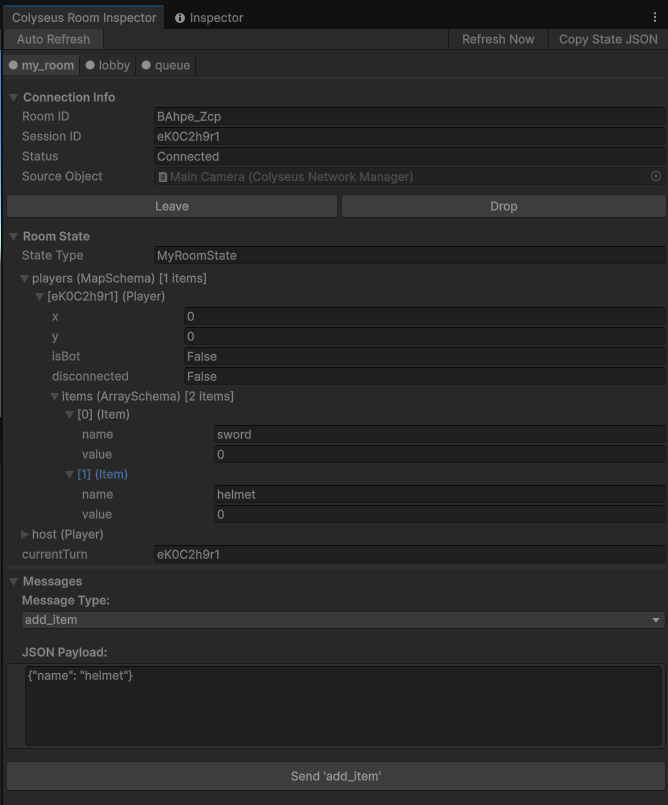
The editor debug panel lets you inspect the room state and messages in real-time during development. You can also simulate high latency, connection drops, and more.
You can enable the Editor Debug Panel at Window → Colyseus → Room Inspector
Breakpoints
If you set a breakpoint while the WebSocket connection is open, the connection is closed automatically after 3 seconds of inactivity. To prevent the WebSocket connection from dropping, use pingInterval: 0 during development:
import { defineServer } from "colyseus";
import { WebSocketTransport } from "@colyseus/ws-transport";

const server = defineServer({
    // ...
    transport: new WebSocketTransport({
        pingInterval: 0, // <--- HERE
    }),
    // ...
});
Make sure to have a pingInterval higher than 0 on production. The default pingInterval value is 3000.
 React
React MonoGame